Installing 74LS Series Parts in Fritzing 1.0.6
Guide on installing the 74LS series logic chip parts in Fritzing 1.0.6

Ben Eater's 8-bit computer relies heavily on 74LS series logic chips — the 74LS04 inverter, 74LS08 AND gates, 74LS32 OR gate, and several others across the various modules. Once I had Fritzing up and running (see my post building-fritzing-for-pi-5 on building it from source), the next step was getting those parts into the application so I could actually plan the layouts.
Fritzing's built-in parts library does not include the 74LS series at all. Searching for "74LS04" or similar turns up nothing useful. The Adr-hyng 74LS-Series-Fritzing-Parts collection on GitHub fills that gap — 56 parts covering the full 74LS series plus AT28C EEPROMs, an NE555 timer, and custom breadboard components, which between them cover everything needed for the 8-bit computer build.
The catch is that these parts were created with an older version of Fritzing and will not import cleanly into 1.0.6. I hit the error myself when trying to add parts through the UI, and had to dig into why before I could get them working. This post documents the problem, the fix, and a script that automates the whole process.
The Problem
Fritzing 1.0.6 requires a fritzingVersion attribute on the <module> tag of every .fzp part definition file. Parts created with older versions of Fritzing omit this attribute, causing Fritzing to refuse the import with the error:
Error reading file .../parts/user/74LSxx_<hash>.fzp: file 'breadboard/<hash>_breadboard.svg'
for title:'74LSxx' and moduleID:'...' not found.
How Fritzing Imports Parts
Understanding the file layout is useful for troubleshooting. When Fritzing imports a .fzpz file it:
- Extracts the
.fzpmetadata file to~/Documents/Fritzing/parts/user/ - Extracts SVGs — stripping the flat
svg.breadboard.,svg.schematic.,svg.icon.,svg.pcb.prefixes — into the corresponding subdirectories under~/Documents/Fritzing/parts/svg/user/ - Registers the part's
moduleIdin the active bin file
The fix script replicates steps 1 and 2 directly, bypassing the UI entirely, then writes a bin file for step 3.
The Fix Script
A Python script handles downloading, fixing, installing, and registering all 56 parts in a single command. It requires only the Python standard library — no additional packages needed.
Usage
# Do everything in one command (recommended)
cd ~/Documents/Fritzing/parts/74LS   # or any working directory
python3 fix_fzpz.py --download --install --register
Fritzing must be closed before running.
Individual steps are also available if needed:
python3 fix_fzpz.py --download    # Download all 56 parts from GitHub
python3 fix_fzpz.py --install     # Fix and install into Fritzing user directories
python3 fix_fzpz.py --register    # Create the 74LS_series.fzb bin file
python3 fix_fzpz.py 74LS04.fzpz  # Fix a single file only (produces 74LS04_fixed.fzpz)
If a download fails partway through, re-running --download is safe — already-downloaded files are skipped.
What the Script Does
--download fetches each .fzpz from the GitHub repository's raw content URL into the working directory.
--install processes each .fzpz:
- Injects
fritzingVersion="0.9.10b.2022-07-01.CD-2134-0-40d23c29"into the<module>tag of the.fzp - Strips any stray control characters from the XML
- Extracts the
.fzpto~/Documents/Fritzing/parts/user/ - Extracts SVGs to the correct subdirectories under
~/Documents/Fritzing/parts/svg/user/ - Deletes
~/.local/share/fritzing/parts.dbso Fritzing reindexes on next launch
--register scans parts/user/ for all installed parts, extracts their moduleId values, and writes ~/Documents/Fritzing/bins/74LS_series.fzb — a bin file that causes Fritzing to display a 74LS Series bin in the parts panel.
After Running
Launch Fritzing. On first launch it will rebuild its parts database (this takes a few seconds). The 74LS Series bin will appear in the parts panel containing all 56 parts, and the parts are also searchable by name.
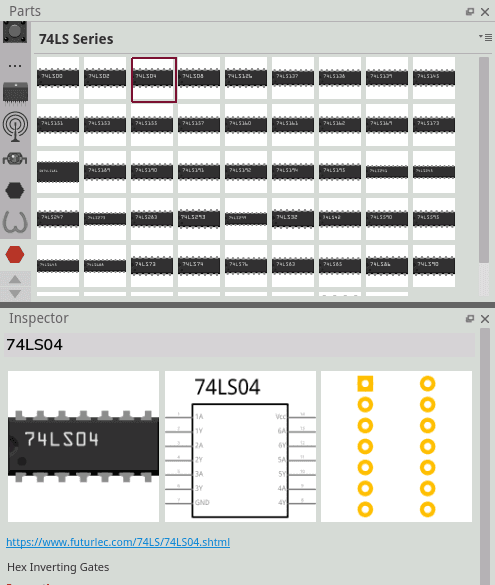
Parts panel in Fritzing showing the 74LS series chips
Notes
Bin icon
Fritzing loads bin icons from its compiled Qt resource bundle, not from the filesystem. The bin uses the built-in Custom1.png icon. A custom "74LS" icon would require adding a PNG to resources/bins/icons/ in the source tree and recompiling Fritzing — not worth the effort for a cosmetic change.
Parts already installed via the UI
If you previously attempted to import any of these parts through the Fritzing UI and got errors, stale .fzp files may remain in parts/user/. The install script will overwrite them, but if Fritzing is still showing errors after running the script, check for and remove any stale files manually:
ls ~/Documents/Fritzing/parts/user/
Any file not belonging to a successfully installed part can be removed safely while Fritzing is closed.
Tested on
- Fritzing 1.0.6, built from source
- Raspberry Pi 5, Debian Trixie