Fritzing for Raspberry Pi 5
A complete, working build process on Raspberry Pi OS Trixie (ARM64)

Fritzing is the go-to tool for documenting breadboard circuits — offering a unique photorealistic breadboard view alongside schematic and PCB views in one package. Unfortunately, getting a current version running on a Raspberry Pi 5 is not straightforward. This guide documents a complete, working build process on Raspberry Pi OS Trixie (ARM64).
Why Fritzing?
I'm currently building Ben Eater's 8-bit breadboard computer — a substantial project spread across fourteen 830-point breadboards. Before placing a single wire, I wanted a way to plan each module virtually: verify component placement, think through routing, and produce documentation I can refer to during the physical build.
Fritzing is well suited to this. Its breadboard view gives you a photorealistic representation of your layout — components look like real parts sitting in real sockets — which makes it straightforward to cross-reference against the physical board as you build. My workflow is breadboard-first: I place components and route wires in the breadboard view, then switch to the schematic view to verify the logic is correct. Fritzing generates the schematic automatically from the breadboard connections, so it acts as a sanity check rather than a starting point. The auto-generated schematic is rarely tidy — components end up scattered and wires cross unnecessarily — but it does accurately reflect what you have wired, which is what matters for checking correctness. Once I am happy with the logic I go back and tidy the layout if needed.
The two views together tell the full story of a circuit. The breadboard view shows the physical layout — which rows the components straddle, where the jumper wires run, and how everything fits relative to the power rails.
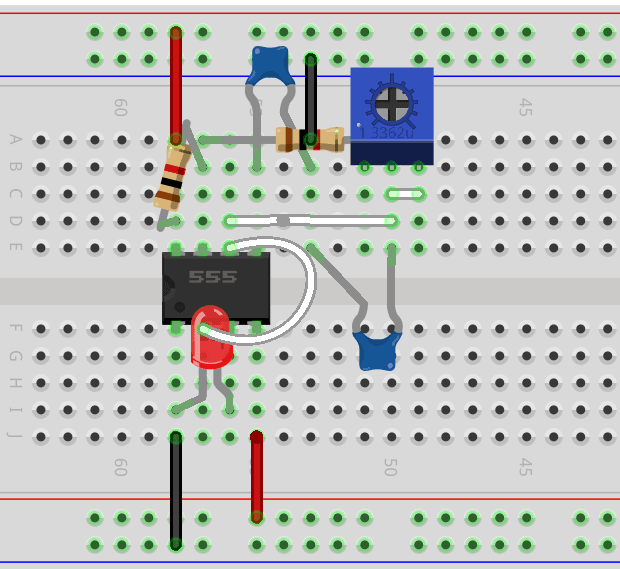
Fritzing breadboard view of the astable 555 circuit
The schematic shows the same circuit in logical terms: how the 555 timer's pins connect to the timing resistors, potentiometer, and capacitor, and where the pin 5 decoupling capacitor sits.
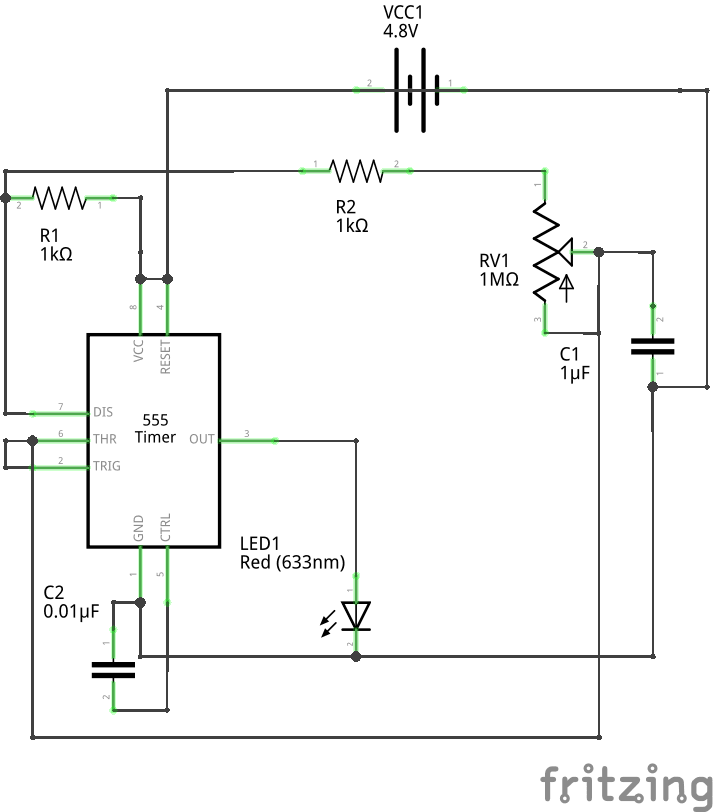
Schematic view: the auto-generated logical representation of the circuit, used to verify the connections are correct.
Having this workflow in place before touching the physical board has already saved time — catching wiring errors early and giving me a clear, documented layout to follow. For a project of this scale, that kind of upfront planning pays for itself quickly.
Why This Is Necessary
There are three obvious routes to installing Fritzing on a Pi 5, and all three have problems:
The apt package (sudo apt install fritzing) installs version 1.0.1 from the Trixie repositories. This version contains a known data integrity bug — fixed in 1.0.2 — that can cause ghost connections in the netlist that cannot be edited or deleted. For a beginner learning what correct circuit behaviour looks like, silent data corruption is a problem.
The official AppImage from fritzing.org is an x86-64 binary. The Pi 5 is ARM64. Running it via Box64 (an x86-64 emulation layer) fails immediately because the AppImage is statically linked — a known incompatibility with Box64's architecture.
Pi-Apps provides a Fritzing installer, but it builds version 0.9.6b, which is several major releases behind and is missing years of bug fixes and parts library updates.
The only route to a current, stable, native binary is building from source.
The Core Problem with Building from Source
Fritzing's build scripts are designed to find dependencies in manually-sourced sibling directories at specific paths — for example ../../libgit2-1.7.1, ../../quazip-6.5.3-1.4, and so on. On Trixie, all of these dependencies are available as system packages, but the build scripts do not know how to find them there.
Additionally, Fritzing's source enforces a maximum Qt version of 6.5.10. Trixie provides Qt 6.8.2. The version check must be bypassed.
This guide patches each detection script to use system packages instead, which is cleaner than sourcing dependencies manually and results in a fully functional native ARM64 binary.
Prerequisites
- Raspberry Pi 5 running Raspberry Pi OS Trixie (64-bit)
- Internet connection
- Approximately 1–2 hours (mostly unattended compile time)
Step-by-Step Build Process
If you prefer to run all the steps below in one go, a complete build script is available here:
build-fritzing.sh
1. Install Build Dependencies
sudo apt update
sudo apt install git qt6-base-dev qt6-base-dev-tools qt6-serialport-dev \
  qt6-5compat-dev qt6-svg-dev libgit2-dev libssl-dev \
  zlib1g-dev libboost-dev libsqlite3-dev build-essential \
  libngspice0-dev libquazip1-qt6-dev libsvgpp-dev libpolyclipping-dev
2. Clone the Source Repositories
mkdir -p ~/git-repos
cd ~/git-repos
git clone https://github.com/fritzing/fritzing-app.git
git clone https://github.com/fritzing/fritzing-parts.git
3. Patch the Build Scripts
All patches redirect Fritzing's dependency detection scripts from hard-coded sibling directory paths to the correct system library locations on Trixie.
Raise the Qt version ceiling (Trixie provides 6.8.2; Fritzing's scripts cap at 6.5.10):
sed -i 's/QT_MOST=6.5.10/QT_MOST=6.8.99/' ~/git-repos/fritzing-app/phoenix.pro
Redirect ngspice to the system installation:
sed -i 's|NGSPICEPATH = ../../ngspice-42|NGSPICEPATH = /usr|' \
  ~/git-repos/fritzing-app/pri/spicedetect.pri
Redirect quazip to the system installation:
sed -i 's|QUAZIP_PATH=$$absolute_path($$PWD/../../quazip-$$QT_VERSION-$$QUAZIP_VERSION)intuisphere|QUAZIP_PATH=/usr|' \
  ~/git-repos/fritzing-app/pri/quazipdetect.pri

sed -i 's|QUAZIP_INCLUDE_PATH=$$QUAZIP_PATH/include/QuaZip-Qt6-$$QUAZIP_VERSION|QUAZIP_INCLUDE_PATH=/usr/include/QuaZip-Qt6-1.4|' \
  ~/git-repos/fritzing-app/pri/quazipdetect.pri

sed -i 's|QUAZIP_LIB_PATH=$$QUAZIP_PATH/lib|QUAZIP_LIB_PATH=/usr/lib/aarch64-linux-gnu|' \
  ~/git-repos/fritzing-app/pri/quazipdetect.pri
Redirect svgpp to the system installation:
cat > ~/git-repos/fritzing-app/pri/svgppdetect.pri << 'EOF'
# Copyright (c) 2021 Fritzing GmbH
message("Using fritzing svgpp detect script.")
SVGPPPATH=/usr
message("including $${SVGPPPATH}/include")
INCLUDEPATH += $${SVGPPPATH}/include
EOF
Redirect Clipper to the system installation:
sed -i 's|exists($$absolute_path($$PWD/../../Clipper1)) {|CLIPPER1=/usr|' \
  ~/git-repos/fritzing-app/pri/clipper1detect.pri

sed -i 's|	            CLIPPER1 = $$absolute_path($$PWD/../../Clipper1/6.4.2)||' \
  ~/git-repos/fritzing-app/pri/clipper1detect.pri

sed -i 's|				message("found Clipper1 in $${CLIPPER1}")||' \
  ~/git-repos/fritzing-app/pri/clipper1detect.pri

sed -i 's|			}||' \
  ~/git-repos/fritzing-app/pri/clipper1detect.pri

sed -i 's|INCLUDEPATH += $$absolute_path($${CLIPPER1}/include/polyclipping)|INCLUDEPATH += /usr/include/polyclipping|' \
  ~/git-repos/fritzing-app/pri/clipper1detect.pri

sed -i 's|LIBS += -L$$absolute_path($${CLIPPER1}/lib) -lpolyclipping|LIBS += -L/usr/lib/aarch64-linux-gnu -lpolyclipping|' \
  ~/git-repos/fritzing-app/pri/clipper1detect.pri

sed -i 's|QMAKE_RPATHDIR += $$absolute_path($${CLIPPER1}/lib)|QMAKE_RPATHDIR += /usr/lib/aarch64-linux-gnu|' \
  ~/git-repos/fritzing-app/pri/clipper1detect.pri
Redirect libgit2 to the system installation:
sed -i 's|LIBGITPATH = $$absolute_path($$_PRO_FILE_PWD_/../libgit2-$$LIBGIT_VERSION)|LIBGITPATH = /usr\nLIBGIT2LIB = /usr/lib/aarch64-linux-gnu|' \
  ~/git-repos/fritzing-app/pri/libgit2detect.pri

sed -i 's|INCLUDEPATH += $$LIBGITPATH/include|INCLUDEPATH += /usr/include|' \
  ~/git-repos/fritzing-app/pri/libgit2detect.pri

sed -n '64p' ~/git-repos/fritzing-app/pri/libgit2detect.pri
# Verify line 64 contains: LIBGIT2LIB = $$LIBGITPATH/lib
# If so, patch it:
sed -i '64s|LIBGIT2LIB = $$LIBGITPATH/lib|LIBGIT2LIB = /usr/lib/aarch64-linux-gnu|' \
  ~/git-repos/fritzing-app/pri/libgit2detect.pri
4. Configure with qmake
mkdir -p ~/git-repos/fritzing-app/build
cd ~/git-repos/fritzing-app/build
qmake6 ../phoenix.pro
All dependencies should resolve without errors. The output should confirm:
- OpenSSL found
- libgit2 dynamic linking enabled
- Boost found
- ngspice found at /usr
- quazip found at /usr
- svgpp including /usr/include
- Clipper1 found
5. Compile
make -j4
Using all four Pi 5 cores, this takes approximately 20–40 minutes. Deprecation warnings about Qt API changes will appear throughout — these are harmless. The build is complete when the prompt returns without a fatal error.
6. Verify and Launch
ls -lh ~/git-repos/fritzing-app/build/Fritzing
A successful build produces a ~12MB executable. Launch it with:
~/git-repos/fritzing-app/build/Fritzing -parts ~/git-repos/fritzing-parts
The first launch takes longer than subsequent ones as Qt builds its font and theme cache. Some palette-related messages will appear in the terminal — these are harmless.
Creating a Launch Script
To avoid typing the full path and -parts flag each time, create a simple launcher:
cat > ~/.local/bin/fritzing << 'EOF'
#!/bin/bash
~/git-repos/fritzing-app/build/Fritzing -parts ~/git-repos/fritzing-parts "$@"
EOF
chmod +x ~/.local/bin/fritzing
Ensure ~/bin is on your PATH (it is by default on Raspberry Pi OS), then launch with simply:
fritzing
Creating a Desktop Shortcut
cat > ~/.local/share/applications/fritzing.desktop << 'EOF'
[Desktop Entry]
Type=Application
Name=Fritzing
Comment=Electronic Design Automation
Exec=/home/YOUR_USERNAME/.local/bin/fritzing
Icon=/home/YOUR_USERNAME/git-repos/fritzing-app/resources/system_icons/linux/fritzing_icon.png
Categories=Education;Engineering;Electronics;
Terminal=false
EOF
Adjust the username in the Exec and Icon paths.
Package Version Reference
The following package versions were used in this build. Future Trixie updates may change these versions, but the build process should remain valid as long as the major versions are compatible.
| Package | Version |
|---|---|
| qt6-base-dev | 6.8.2+dfsg-9+deb13u1 |
| libgit2-dev | 1.9.0+ds-2 |
| libngspice0-dev | 44.2+ds-1 |
| libquazip1-qt6-dev | 1.4-1.1+b2 |
| libsvgpp-dev | 1.3.0+dfsg1-6 |
| libpolyclipping-dev | 6.4.2-8+b1 |